

Get started
View as MarkdownInstall on Windows
Lumate Local is Lumate on a single Windows PC, for one person. The data stays on that PC. This page is written for the IT team that looks after the PC.
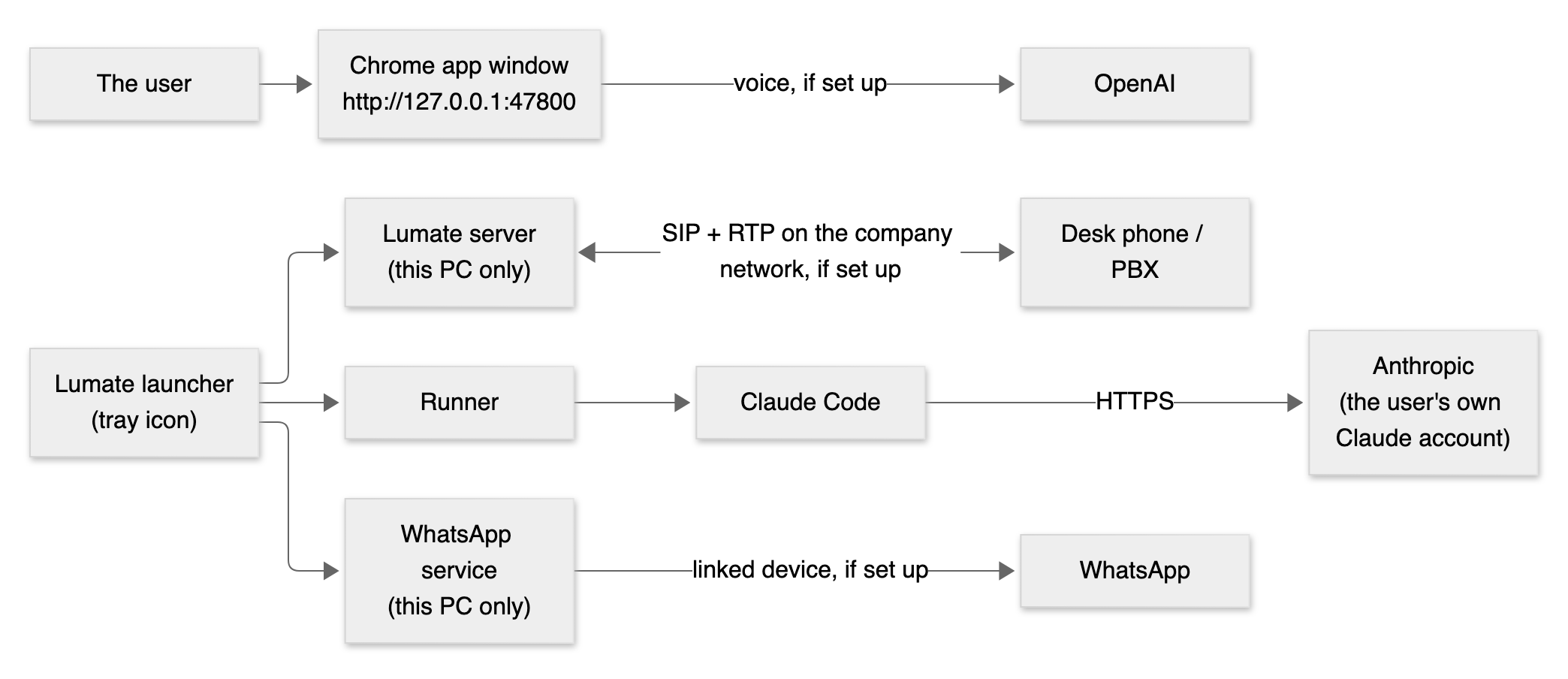
What it installs, and where
| Where | %LOCALAPPDATA%\AgentX only (the user's own folder) |
| Admin rights | None: the installer is per-user. No Windows service, no firewall rule, no change to the system PATH or to machine-wide registry keys |
| Program | app\<version>\: a private Python 3.12 with Lumate's server and runner, the web UI, the office browser extension, the team the user starts with, and a private Node.js 22 (node.exe only) that runs the WhatsApp service |
| Claude Code | tools\claude\: a fixed version, downloaded from Anthropic at setup with its checksum checked. Its automatic updates and telemetry are switched off |
| Data | data\: the database, shared files, logs, daily backups. %LOCALAPPDATA% does not roam and is outside OneDrive's known-folder sync |
| Start | A Start menu shortcut and one in the user's Startup folder. Lumate has one window: opening it again (the shortcut, the tray's Open Lumate) brings that window to the front, and each start replaces the window left from before |
| Listening | The web server only on 127.0.0.1 (one port, 47800–47809), answering only to the names 127.0.0.1 and localhost. The WhatsApp service only on 127.0.0.1 (one port, 47810–47819), answering only Lumate's server, with a token. With the desk phone switched on: UDP on the PC's network address, one SIP port chosen at start and RTP ports 40000–40099 |
| Which PCs | One person's PC. Not shared PCs or multi-session Windows (RDS, VDI): there, another account could take the local port before Lumate starts |
Before installing: the pre-flight check
The installer checks the PC before it copies anything:
- If something required is missing, it does not install. It says what would need to change and offers the report on the desktop.
- If something optional is missing, it installs with that feature off and says so.
- The report holds no company data and no user name.
| Check | If it fails | What IT can change |
|---|---|---|
| 64-bit Windows 10 (1809+) or 11 | Not installed | — |
| Programs may run from the user's folder | Not installed | Allow %LOCALAPPDATA%\AgentX (for example an AppLocker path rule) |
| 2 GB free on the user's drive | Not installed | Free disk space |
api.anthropic.com and downloads.claude.ai reachable over HTTPS |
Not installed | Allow them through the firewall or proxy |
| The proxy needs no Windows sign-in for those addresses | Not installed | Exempt them from proxy authentication |
| A free local port in 47800–47809 | Not installed | Find the program that holds them |
| Google Chrome installed | Office browser off | Install Chrome |
| Chrome policy lets the user load the Lumate extension | Office browser off | Allow Developer mode for this user, or ask us for the Chrome Web Store version |
api.openai.com reachable |
Voice off | Allow it to use voice |
web.whatsapp.com reachable |
WhatsApp cannot be linked | Allow HTTPS and WebSocket to web.whatsapp.com and *.whatsapp.net to use WhatsApp |
| HTTPS inspected with the company's certificate | Handled | — (Lumate gives Claude Code the certificates Windows trusts) |
The same check runs any time from the tray icon (System check).
The first start
Lumate first asks How will this PC use Lumate?
- Lumate on this PC: your company's Lumate runs here. The set-up below follows.
- Connect to a Lumate server: your company's Lumate already runs on a server, and this PC opens it. See Connecting to a Lumate server.
For Lumate on this PC, a short set-up follows in its window:
- Welcome: the company's name, its sector and country, and the user's name, email and password, with the OXS terms accepted. When the installer brings a team package, its sector is chosen already (a real-estate package: the UAE too). See Departments and countries. This is the only sign-up (from 2.3.0): the same email and password open Lumate in another browser and the OXS customer portal.
- Activate: OXS emails a 6-digit code to that address; enter it, and Lumate is activated (a new account starts a 14-day trial; an address with an account signs in to it). No internet at that moment: a licence key works too. See Licensing.
- Your team: the agents the sector brought.
- Connect Claude: the user signs in to their Claude account.
- Almost done: voice (an OpenAI key) and the office browser, both optional.
Connecting to a Lumate server
From 2.15.0. Use this when your company's Lumate runs on a server (for example one your company installed, or OXS hosts) and you want to use it from this PC like an app.
What changes: the window shows the server's Lumate, with its own sign-in. Nothing of a company runs on this PC: no agents, calls or WhatsApp here. The app still updates itself.
To connect:
- At the first start, choose Connect to a Lumate server. (Later: Lumate's icon in the taskbar → Server connection… → Change server.)
- Type the server's address: the one you open Lumate at in a browser, for example
https://agentx.yourcompany.com. Press Check. Lumate makes sure the address is a Lumate server. - Press Connect. Lumate restarts and opens the server.
- Sign in with your own email and password on that server. Everyone in the company uses their own account, on any PC.
Link this PC (only for the office PC that should work for the server): A linked PC can be the agents' office browser (and the PC that takes WhatsApp calls) and the bridge to the office's desk phones. Linking needs an admin of the company.
- Lumate's icon in the taskbar → Server connection… → Link this PC. A code appears, for 10 minutes.
- Press Approve in Lumate. An admin signs in and presses Link this PC (or types the code in Settings → Linked PCs on any computer).
- Server connection… says Linked and connected.
- In Lumate (on the server): Settings → Browser → On a linked PC → Use this PC gives it the office browser (the first time, its Chrome loads the extension once: the PC's Server connection page shows how), and Settings → Desk phone → Connection runs on gives it the desk phone line.
A linked PC has to stay on, with Windows signed in and Lumate running (it starts with Windows). While the desk phone line runs through it, Windows does not go to sleep (the screen may still turn off).
To go back: Server connection… → Use Lumate on this PC. A company you had on this PC before opens as it was; nothing was deleted. The PC is unlinked from the server. Unlinking a PC (here or in Settings → Linked PCs) turns off a desk phone line that ran on it, until an admin chooses where it runs next.
If something goes wrong:
- "This is not a Lumate server's address": check the address; it is the one Lumate opens at in a browser.
- "The address sends to another one": use the address you end up on in a browser.
- "Use the server's https:// address": the connection must be encrypted. A server on the office network with its own certificate cannot be used this way yet; open it in Chrome instead.
- The code expired or was declined: press Link this PC again for a new one.
- "The bridge PC is offline" (in Settings → Desk phone): switch that PC on and start Lumate on it.
What leaves the PC
| Where | What | When |
|---|---|---|
Anthropic (api.anthropic.com) |
What the agents work on: messages, instructions, and the files and records they read | While agents work. It uses the user's own Claude account; the token is stored only on this PC, encrypted for this Windows user |
Anthropic (downloads.claude.ai) |
Nothing about the company: Claude Code is downloaded | At setup and when Lumate is updated |
Anthropic sign-in (claude.ai) |
The user signs in to their Claude account in the browser | Once, at setup |
OpenAI (api.openai.com and its voice media servers) |
Voice audio and its transcript; WhatsApp voice notes, to be written out (from 2.14.0; never a Personal chat's) | When the user talks to agents by voice, during AI calls (desk phone, WhatsApp Web, call center), and when a voice note arrives on the linked WhatsApp; only if an OpenAI key was entered |
| The company PBX or a desk phone | Call audio (SIP and RTP) on the company network | Only if the desk phone is set up and switched on |
| Brokers' PCs on the office network (Lumate Desk) | Each broker's own customer cards, over TLS on one port (47830 by default) | Only if an admin switched on Broker access in Settings → Call center, and IT allowed the port |
WhatsApp (web.whatsapp.com, *.whatsapp.net) |
The linked number's one-to-one messages: the ones it receives, the replies a person approves in Lumate, and notifications to managers who set a notification phone | Only after someone links a WhatsApp number in Settings → WhatsApp |
GitHub (raw.githubusercontent.com) |
Nothing about the company: the WhatsApp service reads which WhatsApp Web version is current | While a WhatsApp number is linked, at most every six hours |
| Websites the agents open (office browser) | The pages the agents read, and what they type into search boxes | Only if the office browser extension was added. Agents only read on sites that are not allowed; they never open the company's own network (intranet names, private addresses) unless an admin allowed that site |
| Outside APIs an admin connected | The requests agents make with a stored secret, only to the hosts an admin allowed for that secret | Only if an admin set one up. Changes wait for the admin's approval |
GitHub (github.com, api.github.com, raw.githubusercontent.com) |
Nothing about the company: skill files are downloaded | Only when an admin imports skills from GitHub |
| OXS Cloud's licence service (the address the build names) | At the first run (from 2.3.0): the user's own name, email, password and company, to open or sign in to their OXS account. Then counts and codes only: the version, how many companies, people, agents, calls and messages, the database's size, how updates went; never names, numbers, messages, transcripts or files (the exact fields) | Every 12 hours, and when the person activates Lumate or presses Check now |
| OXS Cloud's release channel (the address the build names) | Nothing about the company: Lumate asks which version its channel (stable or beta) offers and downloads it. The request names only the channel; whether this PC is in a rollout is decided on the PC | Every hour and when asked, from 1.10.0, once the build names a cloud address |
The update folder (SharePoint, *.sharepoint.com) |
Nothing about the company: Lumate lists the folder and downloads new installers | Only on a build without a cloud address, if the owner set an update folder in Settings → Updates: every hour and when asked |
What never leaves the PC:
- nothing the company keeps is sent to OXS or to any other party: the licence's check-ins carry counts and codes only;
- there is no other telemetry. The only update checks are the release channel's (which version is offered, and its download) or the owner's own update folder; neither carries anything about the company.
How the data is protected
- Keys: the keys that encrypt the stored secrets, the Claude sign-in and the runner key are protected with Windows DPAPI for this Windows user. Copying the data folder to another PC or user does not reveal the stored secrets.
- Secrets the user enters (the OpenAI key, the desk phone's password): stored encrypted. They are never shown again and never given to the agents.
- WhatsApp: a linked session is full access to that WhatsApp account. Its files in
data\whatsappare encrypted with a key kept in the same DPAPI-protected store, and the WhatsApp service answers only Lumate's server. - Disk: the data folder is normally on a BitLocker-encrypted disk.
- Network: the server answers only on
127.0.0.1and only to its own names, so a web page cannot reach it under another name. Changes need a request from Lumate's own page, and another website cannot make the browser download a backup. - Sign-in: the launcher signs the user in with one-time codes, after the server has proved it holds the launcher's secret. It signs in whoever last signed in with a password in Lumate's window (at first, the person who set it up). After Sign out the window opens the sign-in page, also after a restart, until someone signs in with their email and password. Signing in or out in a browser on another computer changes neither.
- Window: Lumate opens in its own Chrome profile, so the person's everyday extensions and cookies never see its pages.
- Agents: Claude Code runs with only two tools (skills and reading the files of the task at hand). There is no shell, no file writing and no web access of its own.
- Downloads: Claude Code is checked against the checksum Lumate was built with. The Python packages in the installer are checked against the locked hashes when it is built. The installer itself is not yet code-signed.
Updates and backups
- Updates from OXS Cloud (Settings → Updates, from 1.10.0, once the build names a cloud address):
- Channel: Stable (what every customer gets) or Beta (new versions first, for testing). Lumate asks its channel every hour (and on Check now; half an hour after a check that failed) and takes only a version newer than itself whose manifest is signed with Lumate's release key for that channel, then downloads it and checks its size and checksum. A download that stops (a dropped line) goes on from where it stopped at the next check. An answer signed earlier than one this PC already saw is refused, so an old version cannot come back by replaying an old answer.
- Rollouts: a new version may reach a share of PCs first (10%, then 50%, then everyone). Whether this PC is in that share is decided on the PC from its own random install id, so it never changes back and forth; Settings → Updates says when a version reaches this PC in a later wave.
- Install updates automatically (on by default): a downloaded update is installed in the maintenance window (02:00–05:00 in the company's time zone by default, changeable), never during a call; AI calls (the dialer and started call lists) pause meanwhile and come back by themselves, also when the update could not be installed. A Windows start installs the update the server approved for this PC's channel before Lumate opens, like a desktop app's own updater. Before such an install Lumate asks the cloud once more; a version the cloud stops offering (paused, outside the rollout, or another channel chosen) is withdrawn and its download deleted, so it is never installed at a start, and without the cloud the install waits for the maintenance window. A start tries one version at most once a day and three times in all; if it does not go through, Lumate opens as it is, Settings → Updates says why, and Update now can try again.
- Required updates (for example a security fix) are installed in the window and at the next start even when automatic installs are off.
- Update now installs at once, the same way. It asks the cloud first, for a few seconds at most: a version the cloud has paused since the last check, or no longer offers this PC, is withdrawn instead; when the cloud cannot be reached, the version already checked and downloaded is installed. A version that failed on this PC is not offered again, and Settings → Updates says how the last update ended. When a version needs a newer base than this PC has, Settings → Updates says which version to install first.
- Updates from a folder (Settings → Updates, from 1.4.0, on builds without a cloud address):
- The person who set up the PC pastes the link of the update folder: a SharePoint or OneDrive for work folder shared with anyone who has the link. Test link says whether Lumate can read it.
- Lumate looks there every hour (and on Check now). It offers only a version newer than itself whose manifest is signed with Lumate's release key, downloads it and checks its size and checksum.
- Update now (never during a call; the AI dialer pauses) closes Lumate, installs the new version silently and opens it again, usually within a few minutes. Until then, opening Lumate says it is updating.
- Settings → Updates then says how it ended. A version that failed on this PC is not offered again.
- While it updates, and after (2.7.0):
- Lumate's window says it is updating (on Lumate's own address) until the new version opens.
- The first window after an update opens Help → What's new.
- The tray icon's Check for updates looks at once and says in one line what it found.
- Go back to the previous version (Settings → Updates → Previous version, from 2.3.0): an update keeps the version it replaced on the PC. If the new one gives trouble, Go back to <version> (the person who set up the PC; never during a call, and AI calls pause meanwhile) closes Lumate and opens the earlier version, usually within a minute.
- When the earlier version can read today's data, the data stays as it is.
- When it cannot (the update changed how data is stored), the data goes back to the copy taken just before the update; the confirmation says from when. Today's data is kept as a copy in the backups folder (
before-going-back-…db), but the earlier version does not show what changed since. - The version you went back from stays offered but is never installed again by itself: Update now installs it, and a newer version comes as usual.
- If going back cannot finish, the newer version opens again with today's data, and Settings → Updates says why.
- Updates by hand: a new version is also a new installer file, run by the user.
- The installer backs up the database, migrates it and checks that Lumate starts.
- If anything fails, it puts the backup back and returns to the previous version by itself. Nothing is lost.
- An older installer cannot be installed over a newer version.
- If an update was interrupted after the data was migrated, older code never runs on it: Lumate starts the newer version instead, or says to run the newest installer again.
- Backups:
- Lumate keeps a daily backup of its database on the PC (a week) and one before each update.
- Settings → General → Back up now downloads the database and files in one zip, to be saved wherever the company allows. Lumate never sends it anywhere.
- Restoring from a zip:
- Quit Lumate from the tray.
- In
%LOCALAPPDATA%\AgentX\data, replace onlyagentx.dband thefilesfolder with the ones in the zip. Leavedata\localas it is: it holds this PC's keys. - Start Lumate.
- On another PC or Windows user: the restored data works, but stored secrets (the OpenAI key, the desk phone's password) cannot be read there. They show as Value needed in Settings → Secrets until they are entered again.
Claude Code updates (from 2.6.0)
The runner keeps Claude Code current by itself (Settings → Runners → Claude Code): it takes Anthropic's stable
channel (or latest), checks the release's manifest against Anthropic's release signing key (fingerprint
31DD DE24 DDFA B679 F42D 7BD2 BAA9 29FF 1A7E CACE) and the download against the manifest, and switches only when the
new version answers --version and still knows every option the runner uses. Versions live in tools\claude\versions
beside the copy installed with Lumate, which always stays. If the first three runs on a new version fail before
Claude answers (a sign-in or network problem does not count), the runner goes back to the version before and admins
get a notice; that version is tried again a week later, or at once with Check now. After Go back the runners stay
on the version before until an admin presses Check now.
At most one update a day. OXS can stop a version that breaks agents
for every install (at the next check-in).
Removing it
- Uninstall it from Windows Settings → Apps → Lumate. No admin rights are needed.
- It asks whether to delete the data as well (the default is to keep it). To wipe everything later, delete
%LOCALAPPDATA%\AgentX. - If the office browser extension was added, remove it in Chrome (
chrome://extensions), together with the "Lumate" Chrome profile if one was made. - If a WhatsApp number was linked, unlink it in Lumate (Settings → WhatsApp → Unlink) before uninstalling, or later on the phone: WhatsApp → Settings → Linked devices.
Logs
The logs are in %LOCALAPPDATA%\AgentX\data\logs, also reachable from the tray icon (Logs folder):
server.log;runner.log;whatsapp.log;launcher.log.They keep errors and start-up lines, never secrets or tokens. There is no request log, and database errors do not include values.
Each log is kept to 5 MB, with three older copies.
Claude Code keeps a transcript of each agent run in
%LOCALAPPDATA%\AgentX\tools\claude\config\projects. Those transcripts hold company data, like the database.
The desk phone and the PBX
If the desk phone is used, set up its PBX extension like this:
- the caller ID of the person's phone fixed by the PBX (phones cannot set their own);
- no outside number routed to the Lumate extension, unless Lumate answers callers on it (Lumate answers callers on the office line in Settings → Call center → Incoming calls);
- the extension allowed only from this PC's address;
- a long random password.
For the call center, the same extension also calls customers and hands them to brokers:
- It may call outside numbers. The outside-line prefix (for example
9) is set in Settings → Call center. - It may transfer calls. Lumate rings the broker's extension, tells them who is calling, then joins the two (SIP REFER with Replaces); if the PBX refuses that, Lumate stays in the middle and passes the audio on.
- The brokers' phones or PBX apps answer on their own extensions.
Several AI calls can run at once on that one extension. Their number is set in Settings → Call center, so the PBX must allow that many calls on the extension. Without the call center, the extension needs no outside line.
The call audio is not encrypted on the network (no TLS or SRTP yet).
On a call that comes in from the desk phone, the agent only talks and answers from what the team shared for callers. It does not take requests or open private notes, because a caller's number can be faked. Requests by voice are only taken on calls the person starts from Lumate.
Broker access (the call center)
Brokers work their customer cards in Lumate Desk on their own PCs. Lumate Local otherwise listens only on 127.0.0.1. Broker access opens one more door when an admin switches it on in Settings → Call center.
| What | How it works |
|---|---|
| Port | Inbound TCP 47830 (the port can be changed) on this PC's office address only. A standard user cannot add the Windows Firewall rule, so IT allows it, from the office network only. Give this PC a fixed address (a DHCP reservation). |
| What is reachable | Only the broker API (/api/broker/…). Every other path answers 404 and never reaches Lumate. |
| Encryption | TLS 1.2 or newer, with a certificate this PC makes (ECDSA P-256). Its private key is encrypted, and its password is kept with DPAPI for this Windows user. |
| Pinning | Lumate Desk remembers the certificate's fingerprint when it pairs and checks it on every connection before sending anything. |
| Pairing | The broker's one-time code never travels. Each side proves it holds the code with an HMAC over the certificate. A machine in the middle shows another certificate, so its proof fails. Pairing is limited to 5 tries a minute per address. After 10 wrong codes within 15 minutes, every open code is cancelled. |
| Access | Each PC gets its own device token. Lumate stores only its hash; on the broker's PC it is kept with DPAPI. Admins revoke a PC in Call center → the broker. |
Lumate Desk on the brokers' PCs:
- a per-user installer, about 40 MB, with no admin rights;
- it uses the Windows web view (WebView2, part of Windows 10 and 11) and needs no Node.js and no Claude Code;
- it talks only to the address the broker typed;
- inside the PC, its page is served on
127.0.0.1under a random path, and the device token never reaches the page.
The office browser
If the office browser extension is added, agents use websites in a separate Chrome profile. Chrome keeps that profile closed after the PC restarts. So when the office browser is set up but still not connected (and not paused) at two checks, about 20 and 50 seconds after Lumate starts, Lumate opens that profile itself: it is the profile whose extensions include Lumate's extension folder. A page in it says what the window is for; it can be minimized.
The extension is loaded once (Settings → Browser → Prepare the extension, then Load unpacked in Chrome) and never needs a new package after that:
- Its folder lives in Lumate's data (
data\extension). Load that folder, never one underapp\<version>\: those are Lumate's own copies, without a pairing code, and they go away with the next update. A copy without a pairing code says so in its popup. - Updates bring the extension with them. Every start of Lumate gives the folder the extension of the version that runs (its pairing code stays), and the extension reloads itself on the new version. Nothing to do in Chrome.
- While the browser is not connected, Lumate keeps a fresh one-time pairing code in the folder, renewed every 10 minutes, and at once when Lumate refuses the extension's token or code. The extension reads its folder every 30 seconds while it is stopped and pairs again by itself, after a restart, an update or a long sleep. A code it could not use because Lumate was stopped or updating is tried again, not thrown away.
- If the folder was deleted, Lumate puts it back when it opens the office browser's profile.
- Reconnect (Settings → Browser) appears when the folder is there but the browser is not connected: it writes a fresh code and the extension pairs within half a minute. The page also shows the folder Chrome must load it from. The Load unpacked steps show only when the folder is missing.
- After Disconnect, nothing reconnects by itself: Lumate does not open the profile or write codes until someone presses Reconnect or prepares the extension again.
What agents may do there:
- Allowed sites (chosen by an admin): agents may fill and send forms there.
- Any other public site: agents may only read and search.
- The company's network: never, unless an admin allowed the site. This covers intranet names, private addresses and names that point to them.
- Passwords, payment details and files: never typed in.
The remaining risk is this: an agent tricked by text it reads (a web page, a customer's message) could put company information in the address of a page it opens, and so send it to that website. If IT wants to rule this out, block all sites in that Chrome profile except the allowed ones with Chrome's URLBlocklist and URLAllowlist policies, or do not add the extension.
Lumate connects to WhatsApp as a linked device, the way WhatsApp Web does: the number keeps working on its phone, and the PC connects out to WhatsApp, so nothing outside can reach the PC. It works through the company proxy and with HTTPS inspection, like Claude Code.
- Nothing is linked until a person scans the QR code in Settings → WhatsApp with the phone.
- Agents never write to customers on their own: they draft a reply, and a person approves what is sent. The only automatic messages are notifications to managers who set their own notification phone.
- Linked devices are not an official WhatsApp API. Use a dedicated business number, and see the WhatsApp guide for the sending limits and the risks.
- Calls through WhatsApp Web (1.9.0): when the desk phone is off, AI calls can go through WhatsApp Web in the office browser, one at a time. Link it in Settings → Browser → Link WhatsApp Web. See Office browser → Calls through WhatsApp Web. WhatsApp calls do not connect in the UAE.