

Phone, WhatsApp and email
View as MarkdownLumate connects to WhatsApp as a linked device, the same way WhatsApp Web does. The company's number keeps working on its phone; Lumate sees its one-to-one chats, shows them on customer cards, lets agents draft replies, and sends what a person approves.
How it works
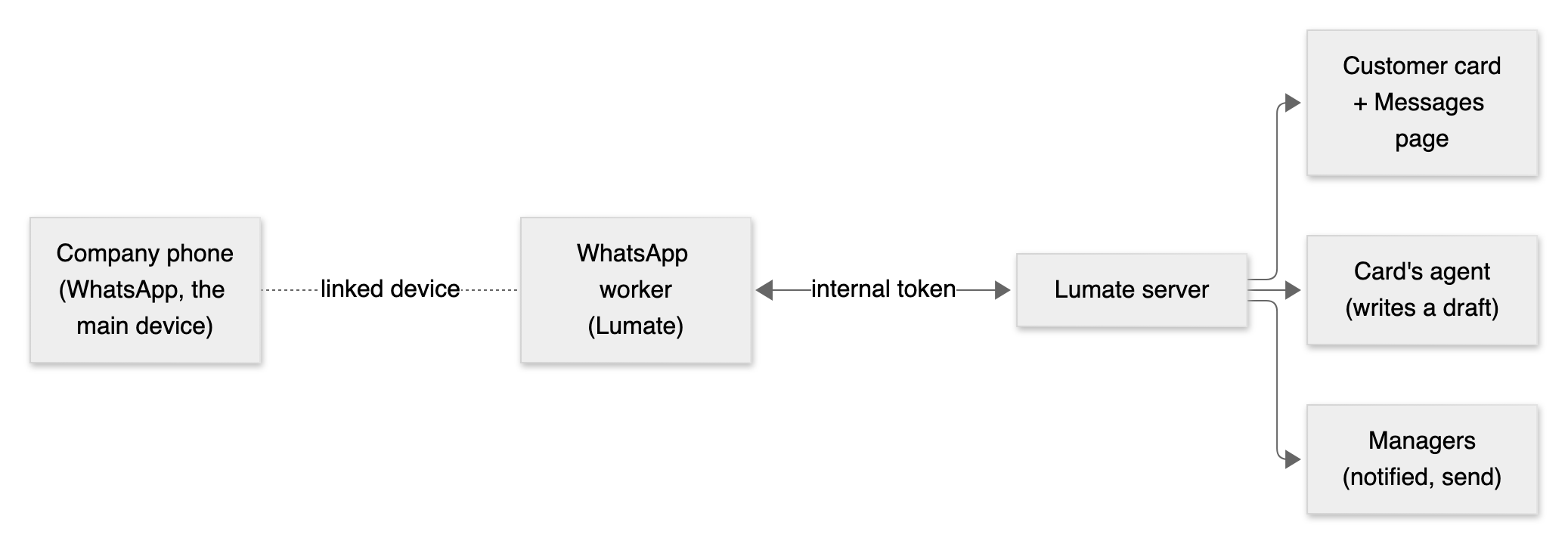
- The worker holds one session per company and keeps it encrypted in its own volume. It receives messages and sends them at a person's pace.
- The server stores every message, links it to a customer card by phone number, and wakes the card's agent to write one draft.
Before you start
- Use a dedicated business number, on a phone that stays charged and online at least every few days. A linked device stops working if the phone is offline for about two weeks.
- WhatsApp Business app or regular WhatsApp both work.
- Messages here; calls through WhatsApp Web. This link carries messages. Calls go out on the company's phone line (see Lumate Local for the desk phone), from call lists an admin starts. When the line is off, Lumate's call routine can call through WhatsApp Web in the office browser instead (see Office browser → Calls through WhatsApp Web). No agent places a WhatsApp call by itself. WhatsApp calls do not connect in the UAE.
- Linked devices are not an official API. Mass messaging, or messages to people who never wrote to you, can get the number banned. Lumate keeps the pace low (see the limits below), but the company remains responsible for how the number is used.
Linking
- The WhatsApp service comes with Lumate: the server edition runs it (the
whatsappservice, see The server edition), and Lumate Local starts it by itself (see Lumate Local). - Open Settings → WhatsApp (admins only) and choose:
- QR code: on the phone, go to WhatsApp → Settings → Linked devices → Link a device, and scan the code;
- Pairing code: enter the number with its country code (+971…, +90…), then type the 8-character code on the phone under "Link with phone number instead". The page shows the number the code is for. If WhatsApp refuses the code, the page says why instead of showing a code. Link with the QR code then.
- The state becomes Connected, and the number and name show.
If the phone says it could not link the device:
- Scan again from the page as it is now: the QR changes every 20 seconds.
- Since mid-2026, WhatsApp can also renew the QR's link secret while you scan. Lumate follows that from 1.7.1 on.
whatsapp.log(from the tray icon: open the logs folder) records each link attempt and how it ended.
| State | Meaning | What to do |
|---|---|---|
| Not linked | No number yet | Link one |
| Linking | Waiting for the QR scan or the code | Scan or type it within a minute; a new code appears when it expires |
| Connected | Working | — |
| Disconnected | Temporarily offline (network, phone) | It reconnects on its own; check the phone's internet |
| Logged out | The phone removed the linked device | Link again |
| Blocked | WhatsApp refused the number (403) | Check the number in the WhatsApp app; contact WhatsApp support |
| Replaced | The session was opened somewhere else (440) | Link again here; don't run two Lumate installs on one number |
Unlink removes the session from Lumate. The messages already stored stay on the cards.
Daily use
When a customer writes
- The message appears on their customer card (WhatsApp section and History), and in Messages.
- If the number is new, a card is created for them, marked as from WhatsApp.
- The text is quoted in the card's thread as outside data, and the card's agent is woken.
- The agent writes one draft. It never sends on its own.
- The managers get a notification:
- in the app;
- on WhatsApp, if they set a notification phone, at most once every 30 minutes per customer.
Photos, videos, documents, stickers, locations and contacts show as [photo], [document] and so on, with any caption. Group chats and status updates are ignored.
Voice notes (from 2.14.0)
A voice note is written out before the agent reads it: OpenAI's Whisper turns it into text with the company's own
OpenAI key (Settings → Secrets, the one voice calls use). The message then reads [voice note] I would like to see the flat on Saturday, and only then reaches the card's thread, its agent and the notifications (a few seconds later).
- The audio is deleted as soon as it is written out. Nothing else keeps it.
- Chats labelled Personal are dropped first: their voice notes are never sent anywhere.
- Notes longer than 15 minutes or larger than 16 MB, and every note when the key is missing or Settings → WhatsApp →
Write out voice notes is off, read
[voice note]as before. A note OpenAI cannot write out reads[voice note] (it could not be written out).
What you write from the phone itself (from 2.14.0)
Messages you type on the company's phone also reach Lumate:
- on a contact's card they appear in its thread ("from the phone"), so the agent knows what was said; they wake no one;
- if the person had no card yet, their reply makes one and the card takes your earlier messages, shown once in its
thread as Earlier on WhatsApp. The agent reads the whole conversation (
whatsapp_history) before drafting.
When WhatsApp hides the sender's number
WhatsApp sometimes names a sender only by a private id (a "LID") and sends their number separately, a little later.
- Lumate waits for the number (up to 2 minutes) and then shows the message as usual. Settings → WhatsApp shows how many messages are waiting.
- If the number never comes (for example the sender hides it with a WhatsApp username), the message still appears: in Messages as a chat marked number hidden, on a card named after the sender. You and the agents answer it as usual.
- When WhatsApp tells the number later, the chat and the card join that number's.
- A card without a number is never called.
Answering
On the card, or in Messages → the conversation:
- Send the agent's draft as it is;
- Edit it, then send;
- Discard it;
- or write your own message in the composer.
Asking an agent to send
In a chat or the card's thread, tell the agent: "Send Sara the viewing time on WhatsApp". An agent can send only when a manager asked it to in that conversation. Otherwise it drafts.
Files (from 2.18.0). Attach the file to your message (or have it on the card's thread) and ask: "Send Sara the Riverside brochure on WhatsApp". The agent sends up to three files at once: PDFs, pictures (JPG, PNG), Office files and text files, 16 MB each. Each file is its own WhatsApp message and your text goes with the first; a picture arrives as a picture. The chat shows each file (a picture as itself, any other file as a card that opens it). Web pages and programs are never sent.
What the ticks mean
| Mark | Meaning |
|---|---|
| 🕓 | Queued in the worker |
| ✓ | Sent |
| ✓✓ | Delivered |
| ✓✓ (blue) | Read |
| waiting (limit) | Held back by the pace limits, sent later on its own |
| not sent | Failed, with the reason (for example, the number is not on WhatsApp) |
Notifications to your team on WhatsApp
Each person can set Your phone for notifications in Settings → Your account. While the company's WhatsApp is connected, these notifications also go to that phone:
- hand-offs;
- appointment requests;
- the daily report;
- new customer messages.
If a teammate replies to such a notification, the reply shows in Messages as "Name (team)". It is not treated as a customer.
Limits (to protect the number)
| Limit | Value |
|---|---|
| Messages per hour | 30 |
| Messages per day | 200 |
| Messages per customer per day | 15 |
| Typing before each message | 2–6 seconds |
| Gap between messages | 3–8 seconds |
| WhatsApp notification to managers | at most once per 30 minutes per customer |
Messages over a limit wait and go out when the limit allows. The tick shows "waiting (limit)".
Privacy
- The session is encrypted at rest with
WHATSAPP_STATE_KEY. - Logs never contain message texts or full phone numbers.
- Message texts are outside data: agents read them as information, never as instructions. So are written-out voice notes.
- Voice notes go to OpenAI only to be written out, on the company's own key, and their audio is deleted afterwards.
- Unlinking removes the session. The messages already stored stay on the customer cards.